Twinr News 4 min read
Twinr Copilot: Ask Your Dashboard How
Twinr Copilot sits beside your dashboard. Ask how to do something in plain words, get an answer built from the help documentation with links to the pages it read, and hand over to a person without starting again.
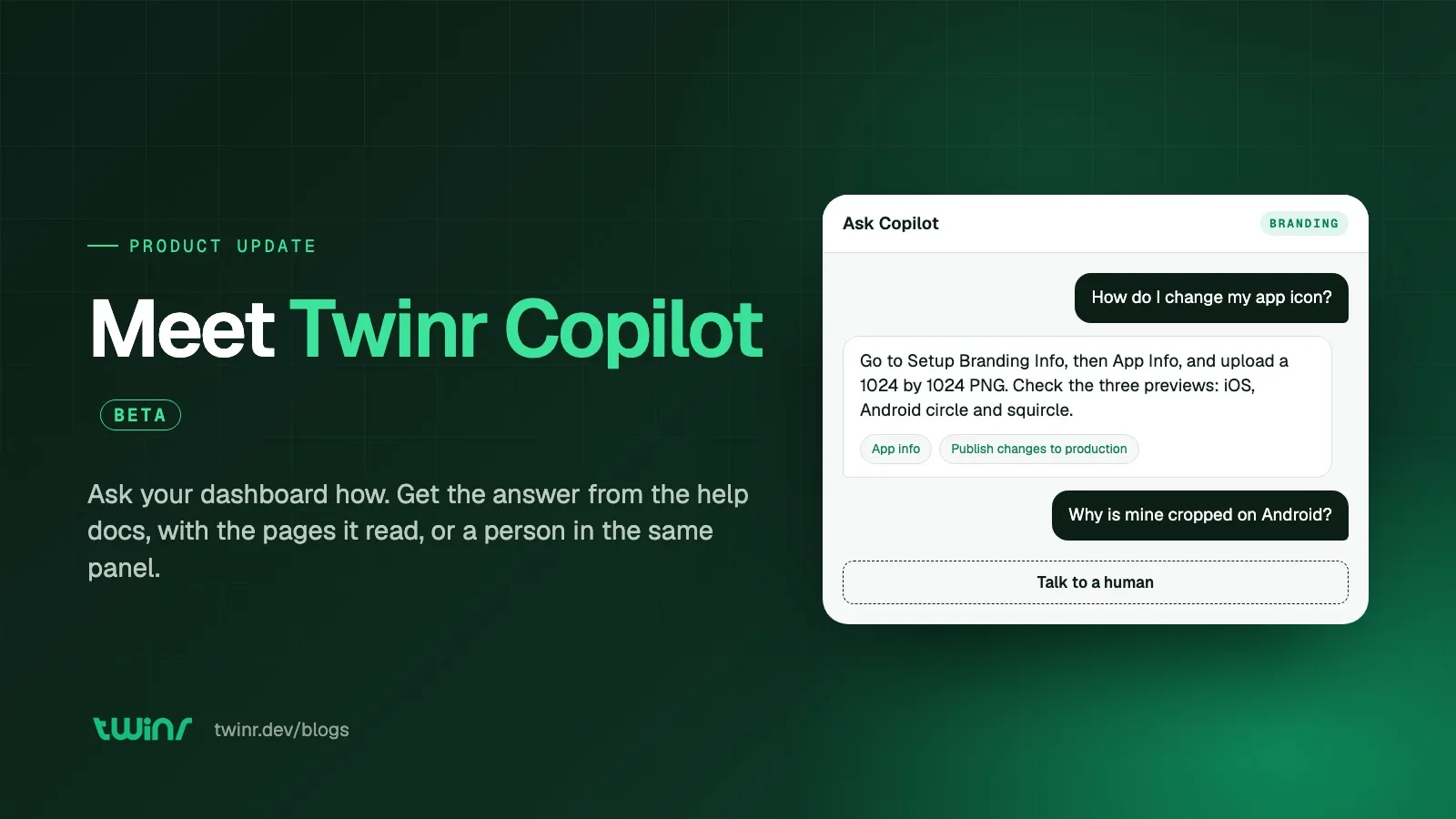
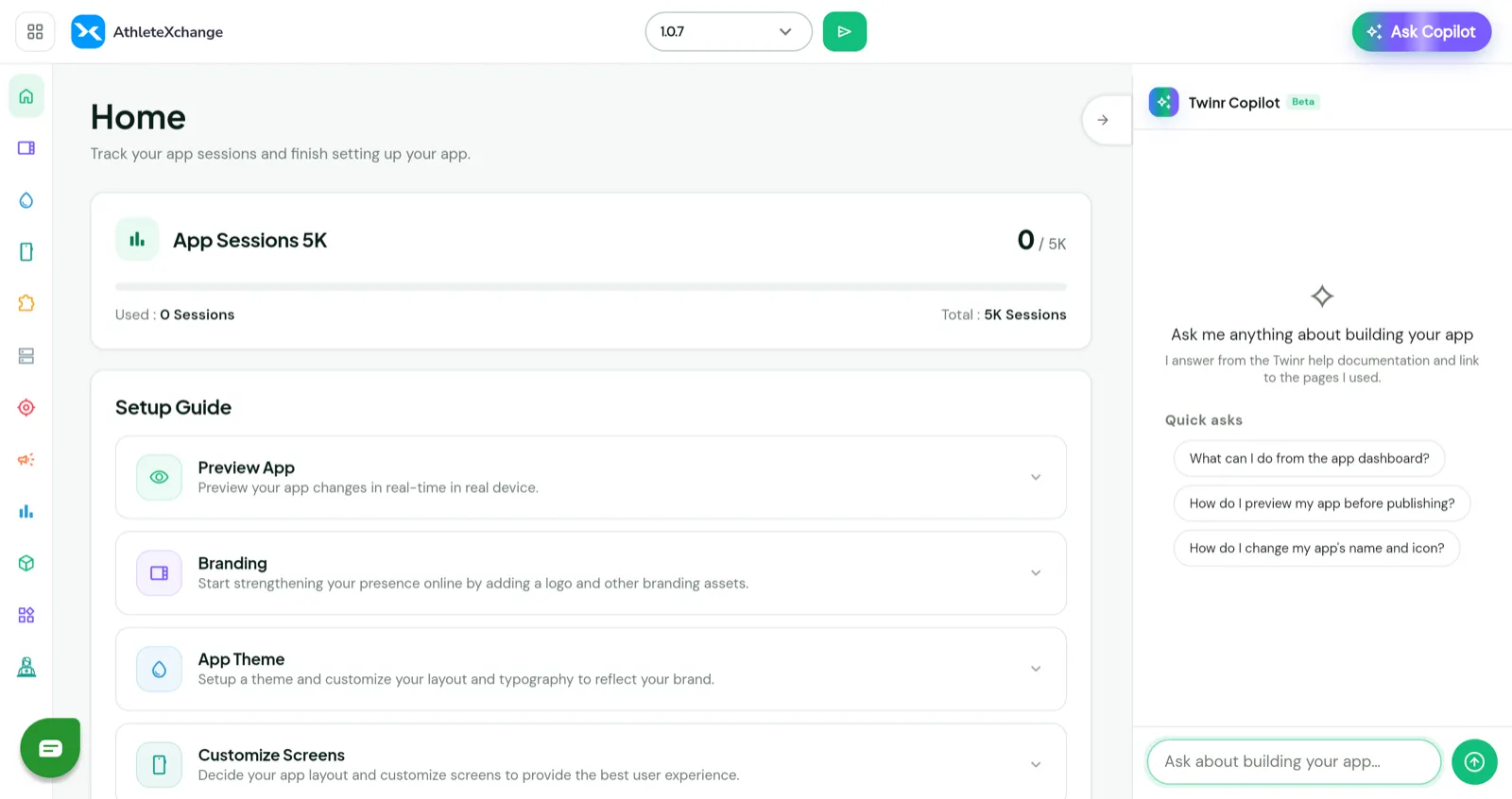
There is a new button at the top right of every app screen in the Twinr dashboard: Ask Copilot. Click it, ask how to do something in your own words, and you get an answer built from Twinr’s help documentation, with links to the pages it read. If the answer is not there, you ask for a person and the same panel becomes a conversation with the Twinr team.
Copilot is in beta and available to every account today. This post covers what it does, how it gets its answers, and what comes next.
What shipped
Copilot does three things.
It answers how-to questions from the documentation. “How do I change my app’s icon?” “Why is my build failing?” “What is the difference between a draft and a published app?” You do not need Twinr’s terminology or the name of a feature; Copilot searches the help centre for you and replies in plain language, with the steps.
It suggests questions for the screen you are on. Open it from the branding screen and the suggestions are about branding; open it from the dashboard and they are about the dashboard. Tap one to ask it, or ignore them and type your own.
It hands you to a person without leaving the panel. When Copilot cannot answer, a Talk to a human button appears, and you can ask for a person at any point. Someone from Twinr picks up the same conversation with everything you already said.
How it gets its answers
Copilot reads the same help documentation you can open at help.twinr.dev. When you ask a question, it searches those pages, reads the ones that look relevant, and writes its answer from what it read.
Two things follow from that, and they are the reason we built it this way.
Every answer comes with its sources. The links under an answer are the pages Copilot actually opened to write it, not pages it decided to mention. That means you can always check the answer, and if it looks thin, the linked page usually has the detail, screenshots and caveats the answer did not have room for.
It only tells you what the documentation covers. If there is no page on something, Copilot says it could not find it rather than inventing an answer. That is not you asking badly; it is a gap in the docs, and the right next step is to ask the team, which is one click away in the same panel.
Getting a good answer
A few habits make Copilot more useful.
- Ask one thing at a time. A question with three parts tends to get an answer about one of them.
- Mention the screen you are on when it matters. “The button on the branding screen isn’t saving” gives Copilot more to work with than “it isn’t saving”.
- Follow the link when the answer looks short. The documentation is the full version; the answer is the summary.
Talk to a human
When you click Talk to a human, the panel confirms it is finding someone and then tells you when you are connected. Replies arrive in the same panel; there is no separate inbox and nothing to refresh. Copilot stays quiet while a person is handling the conversation, so answers come at human speed rather than instantly, and you can carry on working in the dashboard while you wait.
The team sees your conversation but not your screen, so a useful first message includes what you were trying to do, which app, what you see, and what you already tried. When they are finished, the conversation returns to Copilot and your next message is answered by the assistant again. Nothing is lost in either direction.
For something that needs tracking, or anything about billing or your account, a support ticket is still the right route.
What comes next
The Copilot feature page describes where this is going: a copilot that knows your app and can act on it. Change a screen, draft and schedule a push campaign, pull last week’s numbers, start a build, each change arriving as a card that shows exactly what will happen and waits for you to approve it. That is the destination, and the documentation assistant you can use today is the foundation it is being built on: the same panel, the same handover to a person, and the same rule that it never changes anything on its own.
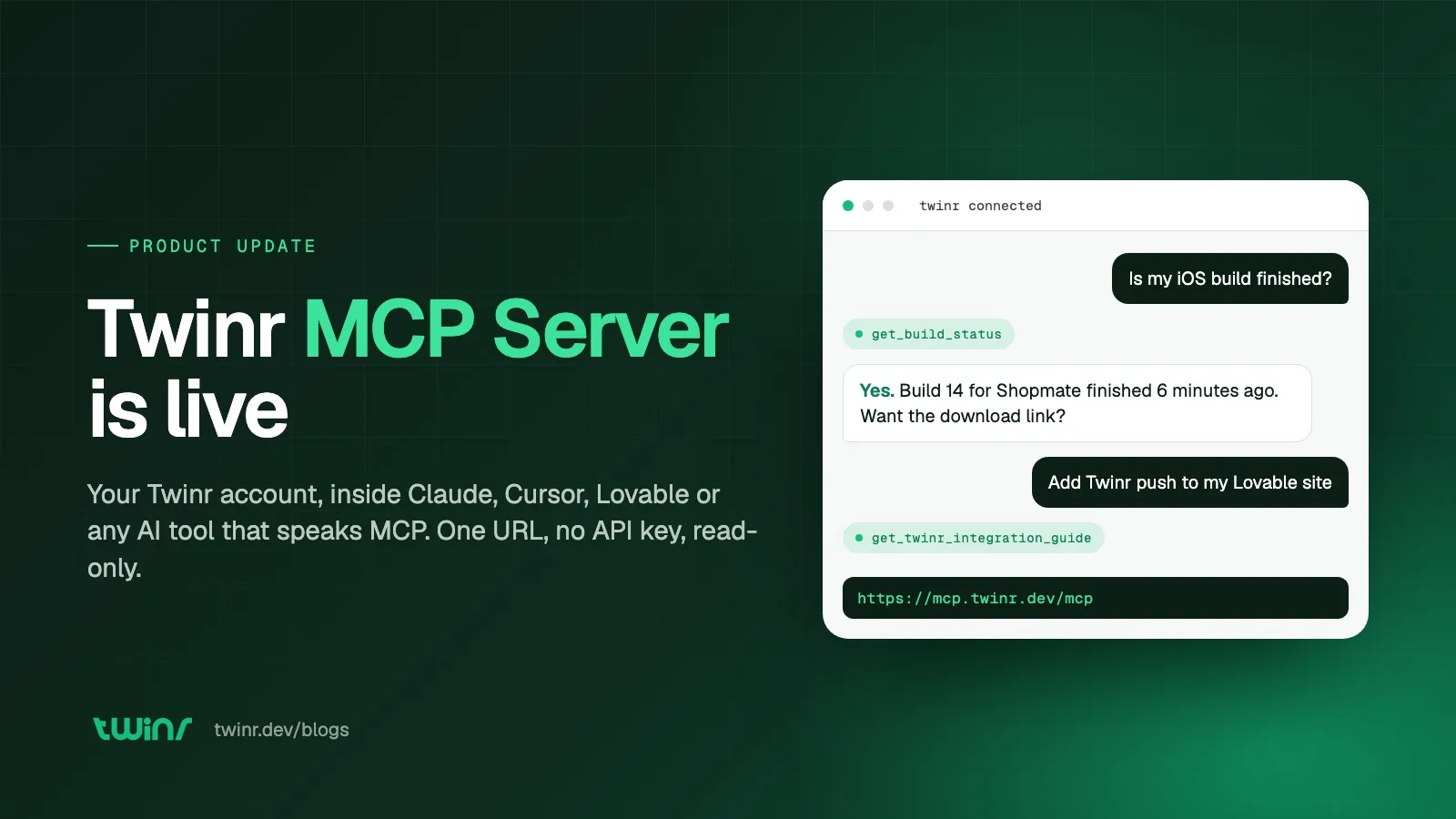
If you build with Claude, Cursor or an AI website builder rather than inside the dashboard, the Twinr MCP server gives those tools the same documentation and your apps’ build status, from wherever you already work.
Try it
Open any app in your dashboard, click Ask Copilot at the top right, and ask the question you would otherwise have searched the help centre for. If it cannot answer, click Talk to a human and tell us what you were trying to do. Both routes teach us what the documentation is missing, and that is how the beta gets better.
The help centre has the full guides: Copilot overview, asking questions and talk to a human.

Gaurav Parvadiya
Gaurav co-founded Twinr in 2022 to put native mobile apps within reach of businesses with no in-house mobile team. He works on the platform day to day, where it has since helped 50,000+ businesses turn a website into a native iOS and Android app, and writes about store approval, push notifications, and the decisions that separate a real native app from a wrapper.
All posts by GauravFrequently asked questions
What is Twinr Copilot?
It is the assistant built into your Twinr dashboard. Click Ask Copilot on any app screen, ask a question about building your app in plain words, and it answers from Twinr's help documentation, linking to the pages it used. If it cannot answer, you can ask for a person in the same panel.
Can Copilot change my app?
No. Today it explains how to do things and you make the change in the dashboard. Acting on your behalf, with a card you approve before anything goes live, is what comes next.
Where do its answers come from?
From the Twinr help documentation, the same pages you can read at help.twinr.dev. Copilot searches them, reads the relevant pages and answers from those. Every answer links to the pages it actually read, and if nothing covers your question it says so instead of guessing.
Does Copilot know about my specific app?
Not yet. It answers from the documentation, not from your app's settings. For a question about your own configuration, look at the screen in question or ask the team through the Talk to a human button.
How do I reach a person?
Click Talk to a human in the Copilot panel. Someone from the Twinr team joins the same conversation and sees everything you already said, so you do not explain twice. When they are done, the conversation returns to Copilot.