Twinr News 7 min read
Twinr MCP Server: Manage Your App From Your AI Tool
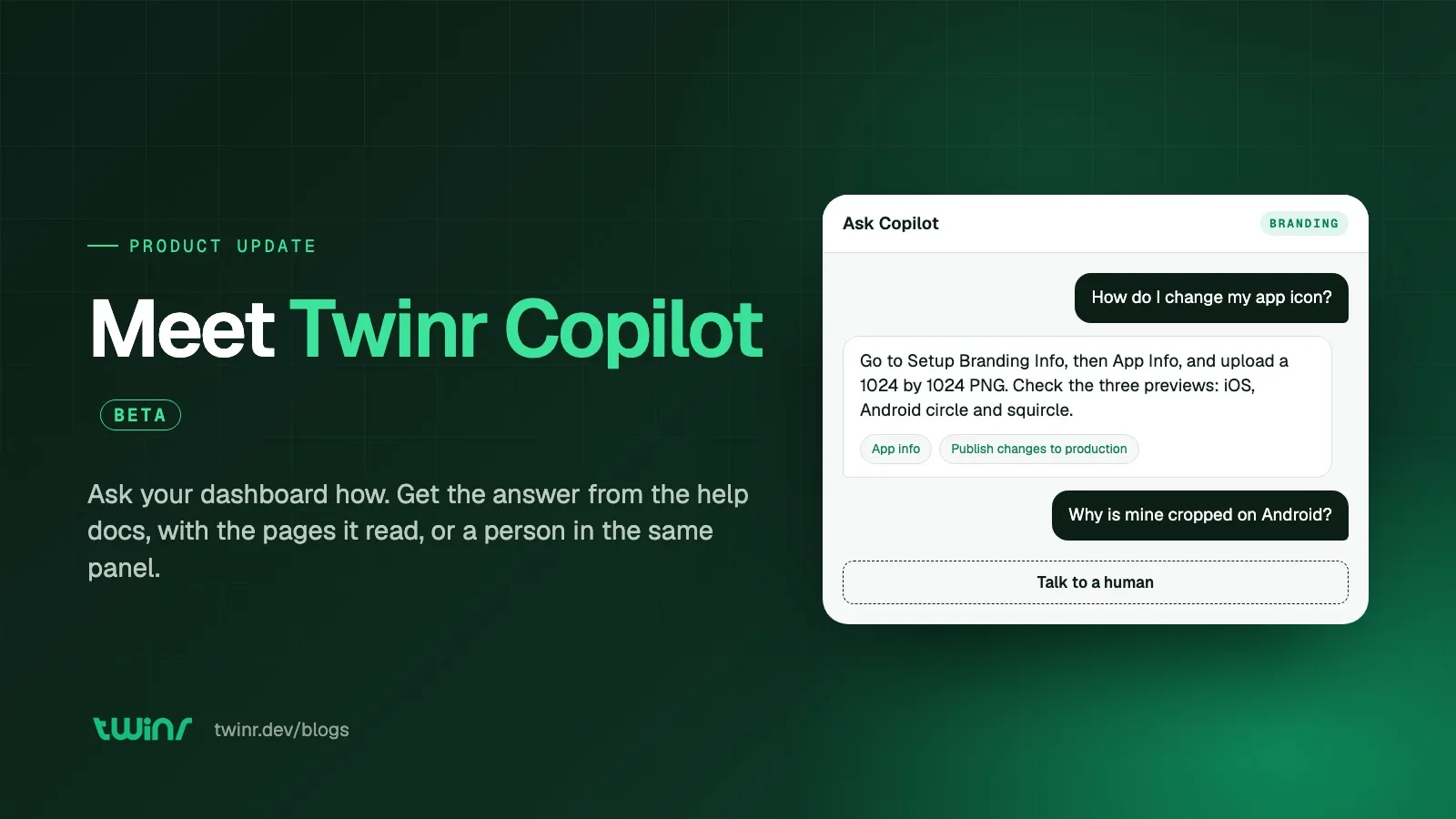
Twinr has an MCP server. Connect the AI tool you already use to your Twinr account and manage your app by asking: check a build, change your navigation, send a push campaign or pull last week's numbers, with no API key.
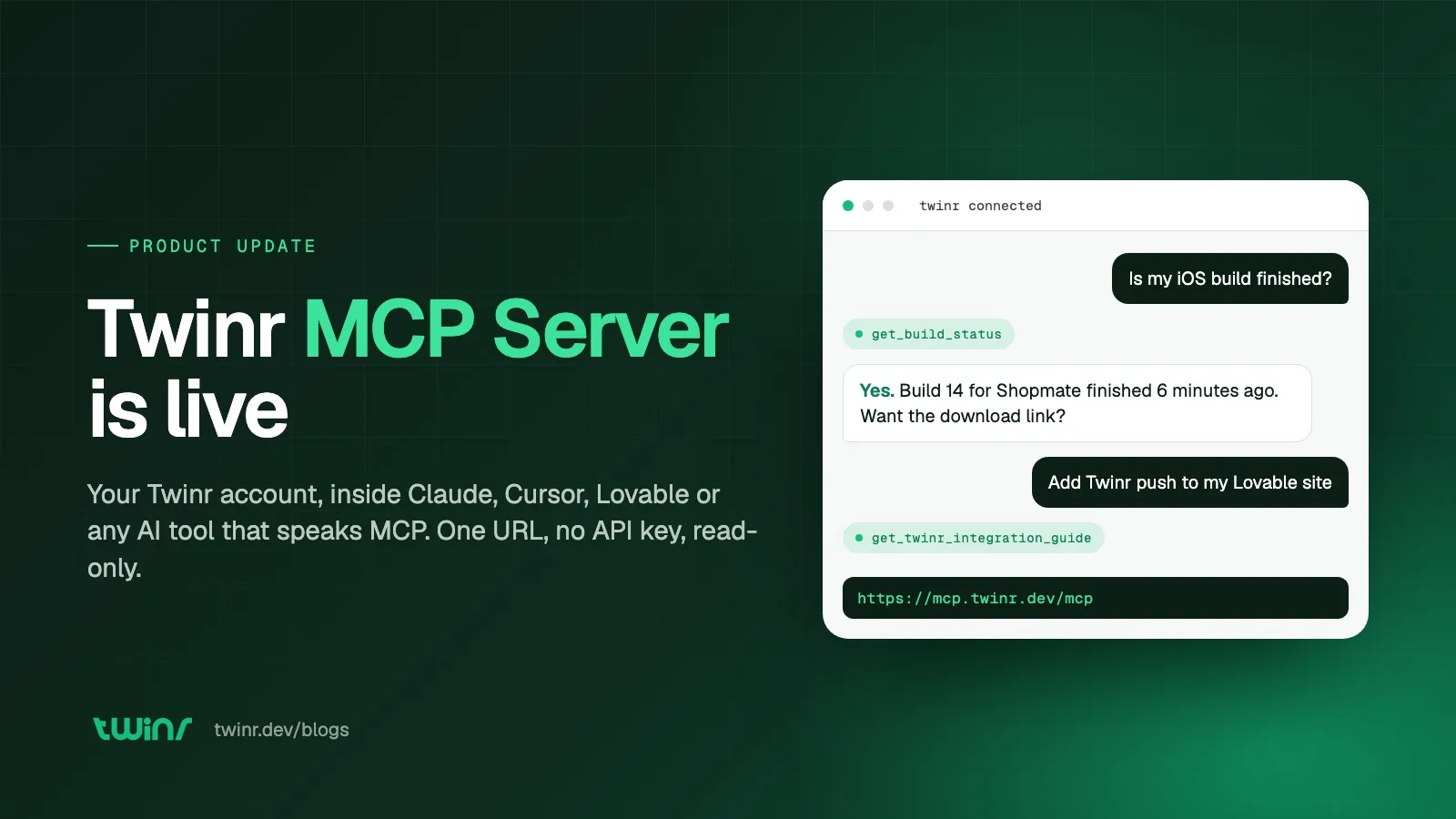
Twinr now has an MCP server. Add one URL to the AI tool you already use, sign in to Twinr in your browser, and manage your app by asking. Check a build, change your navigation, send a push campaign, pull last week’s numbers, without opening the Twinr dashboard. No API key, and nothing to copy out of a settings page.
The server is live at https://mcp.twinr.dev/mcp for every Twinr account. This post covers what you can do with it, which tools it works with, how to connect it from Claude, Cursor, Lovable and the rest, and what the approval screen asks.
What shipped
MCP, the Model Context Protocol, is a standard way for AI tools to talk to outside services. Instead of Twinr building a separate plugin for Claude, another for Cursor and another for Lovable, Twinr runs one server that speaks the standard, and any tool that speaks it can connect.
From the first build to the hundredth campaign, the same connection works at every step of your app’s life:
- Build. Set up your tabs, colours, icon and launch (splash) screen, then start the iOS and Android builds and check when they’re ready.
- Engage. Draft a push campaign, pick who gets it and when it sends, without leaving the chat you already have open.
- Analyse. Ask how the app is doing and get the numbers back: active users, sessions, retention and revenue.
What you can ask it to do
Everything you’d open the dashboard for. Ask in plain language and your AI tool does the work in Twinr.
| Area | What the assistant can do | Try asking |
|---|---|---|
| Account and apps | See your account and organisations, list your apps and view any one, create a new app or clone one | “Which apps are on my account?” |
| App design | Top bar, tab bar and sidebar menu; colours, icons, launch screen and status bar; link rules, deep links and URL schemes | “Add a Rewards tab next to Shop” |
| Plugins, push and numbers | Browse plugins and turn them on or off, create push campaigns, pull your app’s numbers | “How many people opened the app last week?” |
| Builds | Check iOS and Android build status, get your download links, start a new build | “What’s the status of my iOS build?” |
If you build your site with an AI tool, the connection also gives it what it needs to wire Twinr into your code:
| Area | What the assistant can do |
|---|---|
| Documentation | Search and read the Twinr help centre |
| Integration guides | Fetch Twinr’s guides for push notifications, login sync and in-app purchases |
| JavaScript bridge | List every function the Twinr app injects into your site, with its arguments |
| Project setup | Produce a Twinr context block to save in your project, so later sessions remember |
Why we built it
The people building apps with Twinr increasingly build their websites with an AI tool first. Lovable, Replit, Base44, Cursor. When they ask that tool “add Twinr push notifications to my site”, it does what every model does with a product it half knows: it guesses. It invents a snippet, points at a setting that does not exist, or asks you to paste something from a page it cannot see.
With the MCP server connected, the same question goes differently. The assistant fetches Twinr’s own push notification guide, reads the JavaScript bridge reference to see exactly which functions the Twinr app exposes, and writes code against the real thing. If you ask whether your iOS build is done, it checks, instead of telling you to go and look. The tool you build in stops guessing about Twinr and starts working with it.
Works with the tool you already use
Twinr’s MCP server works with any AI tool that supports MCP:
- Chat assistants: Claude, ChatGPT, Gemini, Perplexity and Grok
- Editors: Cursor and VS Code
- AI website builders: Lovable, Replit and Base44
The list grows as tools add support. Nothing changes on your side when they do.
Connect it in two minutes
Each tool has its own place to add a server, and the URL is the same everywhere:
https://mcp.twinr.dev/mcpClaude. In Settings, open Connectors, click Add custom connector, name it Twinr, paste the URL, then Add and Connect. Connectors added on claude.ai also work in the desktop app.
Claude Code. One command, then authenticate:
claude mcp add --transport http twinr https://mcp.twinr.dev/mcpRun /mcp, select twinr and choose Authenticate.
Cursor. Add a twinr entry to ~/.cursor/mcp.json for every project, or .cursor/mcp.json for one:
{
  "mcpServers": {
    "twinr": {
      "url": "https://mcp.twinr.dev/mcp"
    }
  }
}
Then open Cursor Settings, MCP, and click Connect.
Lovable. In your project, open Connectors, click the plus and choose MCP server. Name it Twinr, paste the URL, leave OAuth selected and click Add and authorize. The Lovable guide has screenshots, and there are matching guides for Base44 and Replit.
VS Code. Add a twinr server of type http to .vscode/mcp.json, click Start and sign in. The tools appear in Copilot Chat’s agent mode.
Anything else. Any client that supports remote Streamable HTTP servers with OAuth connects with the same URL.
Whichever tool you use, test it with a question only Twinr can answer: “List my Twinr apps.” If it names them, you are connected.
What the approval screen asks
Adding the server opens Twinr in your browser. If you are not signed in, Twinr asks you to sign in first and then brings you back. The approval screen shows three things:
- Who is asking. The assistant’s name, marked Verified if Twinr recognises it, or Unverified if it named itself.
- Permission. View only, to let the assistant read your apps, or Can edit, to let it make changes too.
- Apps. Tick the apps to share, or choose all apps including ones you create later.
Click Allow and you are done. Approval links are single use and expire after a few minutes, so if an assistant still asks you to sign in afterwards, start the connection again from the tool. And only approve a request you started yourself: if an approval screen appears when you did not just add a connector, click Deny.
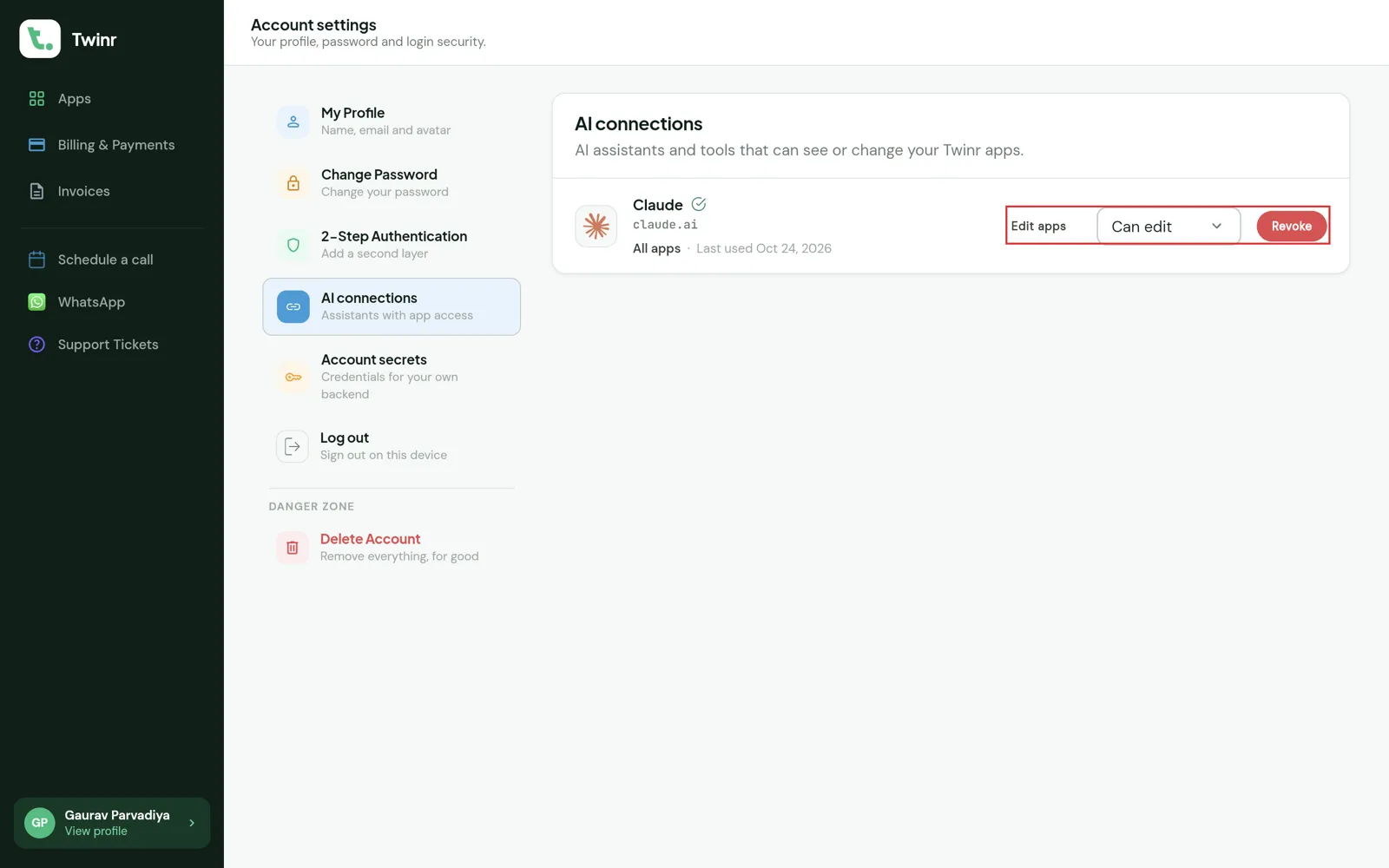
Afterwards, every connection is listed under My Profile, AI connections. Each row shows the assistant, whether Twinr recognises it, which apps it can reach and when it was last used. Edit apps changes the scope; Revoke ends it in one click. Removing the server from the AI tool itself also stops access.
It can only do what your account can
Connecting is a sign-in, the same as any other app you connect:
- You sign in. No keys to copy, paste or store in a file.
- Your permissions apply. The same access you have in the dashboard, nothing more. The assistant sees your apps, not anyone else’s, and every request is checked by Twinr before anything happens.
- Disconnect any time. Remove the connection in your AI tool, or revoke it in the dashboard, and access stops.
An MCP connection is not an account secret. A connection is for an assistant acting on your behalf, approved in your browser; an account secret is a credential your own backend uses to call the Twinr API.
Where this fits
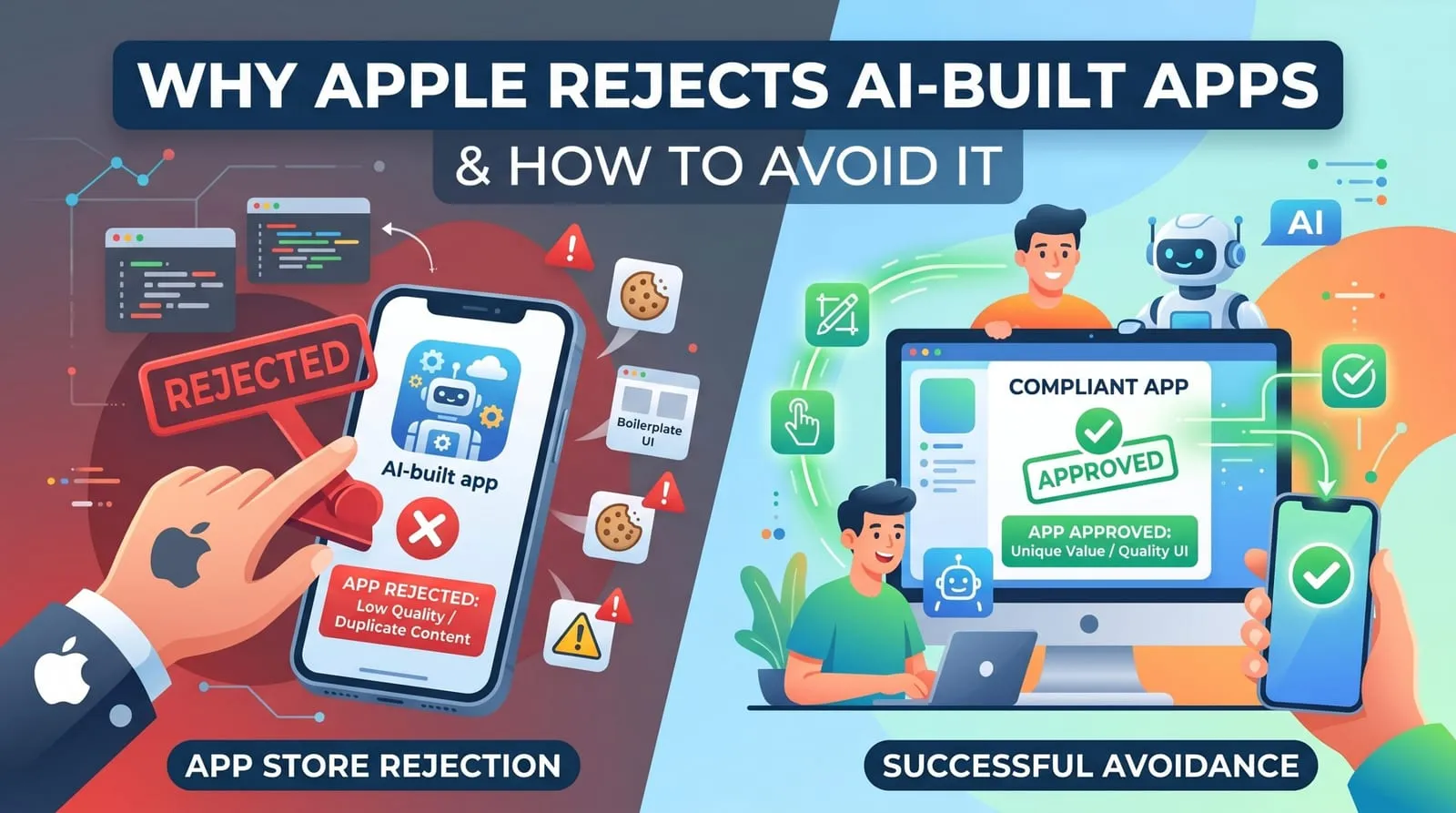
If you build with an AI tool, connect the server before your next Twinr task and ask for the feature by name: “add Twinr push notifications”, not “call the push tool”. The assistant picks the right guide on its own. The Lovable and Base44 conversion guides are the natural next read, and why Apple rejects AI-built apps covers the review rules your assistant can now look up for you.
Full setup details and every client are on the help centre’s MCP page. The feature page has the full list of what you can do.

Gaurav Parvadiya
Gaurav co-founded Twinr in 2022 to put native mobile apps within reach of businesses with no in-house mobile team. He works on the platform day to day, where it has since helped 50,000+ businesses turn a website into a native iOS and Android app, and writes about store approval, push notifications, and the decisions that separate a real native app from a wrapper.
All posts by GauravFrequently asked questions
What is the Twinr MCP server?
It is a connection between Twinr and the AI tools you already use. Add one URL to Claude, ChatGPT, Cursor, Lovable or any other MCP tool, sign in to Twinr in the browser, and you can manage your Twinr apps by asking.
Which AI tools work with it?
Any tool that supports MCP. That includes Claude and Claude Code, ChatGPT, Gemini, Perplexity and Grok, editors like Cursor and VS Code, and AI website builders like Lovable, Replit and Base44. When a new tool adds MCP support, it works with Twinr without any change on your side.
What can I ask it to do?
Everything you would open the dashboard for: see your account and apps, create or clone an app, change the top bar, tab bar, menu, colours, icons, launch screen and link rules, turn plugins on or off, create push campaigns, pull your app's numbers, check builds, get download links and start a new build.
Do I need an API key or a paid plan?
Neither. Connecting opens a browser sign-in to your Twinr account, and the connection is part of every account. Twinr does not charge per message.
Can I still use the Twinr dashboard?
Yes. The MCP connection is an extra way in, not a replacement. Everything stays in sync.
How do I disconnect an assistant?
Go to My Profile, then AI connections, in your Twinr dashboard. Each connection shows which apps it can reach and when it was last used, and has a Revoke button. You can also remove the server from the AI tool itself.